It's a tough job, but somebody's got to do it: find overlooked OS X tricks. Sometimes I hunt for them; sometimes I just run across them. Here's a collection that I bet includes items you've missed, too.
1. Force Quit the current app
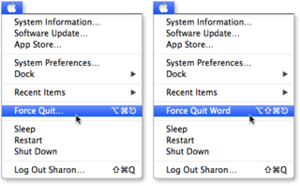 Press Shift-Apple menu and the generic Force Quit command changes to one that force quits the current app.
 Pressing Shift before or after opening the Apple menu changes the Force Quit command to Force Quit [Current Application]. By reflex, I've always pressed Command-Option-Escape, selected the frozen app in the dialog box if necessary, clicked the Force Quit button, clicked the confirming dialog box, and then closed the window. But now I'll use this menu trick to save myself those extra steps.
The menu shows a keyboard shortcut for force quitting the current application. But don't get too excited: I've tried the shortcut on five different computers in Lion and Mountain Lion to no avail. Only choosing from the menu works.
2. Take a break from notifications
 The Notifications pane hides a temporary On/Off switch (top). Drag down the pane to see the switch (middle), and then turn notifications off for the rest of the day (bottom).
 Want some temporary relief from those helpful, yet intrusive, notifications from Apple's Mail, Calendar, Reminders, and other apps? You don't have to turn each one off through System Preferences, because there's a hidden On/Off button.
To read this article in full or to leave a comment, please click here

沒有留言:
發佈留言